
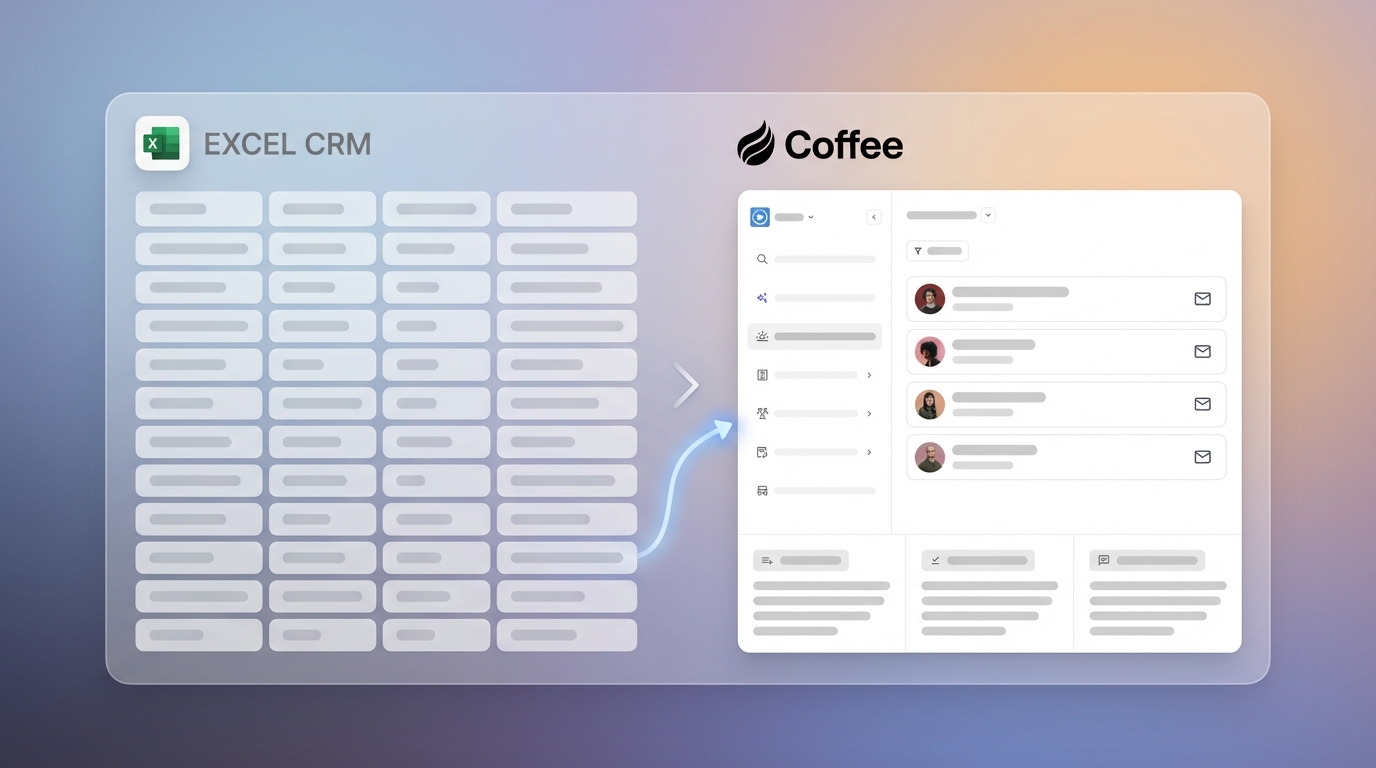
Key Takeaways
- Excel works as a free CRM for small businesses with under 50–70 customers, with customizable contact tracking, interactions, and pipeline views.
- Download the free template with pre-built tabs for Contacts, Interactions, Pipeline, and Dashboard that use VLOOKUP, conditional formatting, and PivotTables.
- Follow the 6-step guide to tailor dropdowns, connect data with formulas, build simple dashboards, and filter your pipeline in under 2 minutes.
- Excel has limits such as manual data entry, no automation, weak scalability, and missed follow-ups; upgrade signals include 5+ admin hours weekly or 50+ customers.
- When manual CRM work slows down selling, Get started with Coffee for AI automation that saves 8–12 hours each week on data entry and follow-ups.
How Excel Fits as a CRM for Small Businesses
Excel can serve as a practical CRM for small businesses with fewer than 50–70 customers. It costs nothing, feels familiar to most owners, and adapts easily to different sales processes. As your customer list grows, manual data entry and the lack of automation start to create delays and errors, which limits Excel’s usefulness as a long-term CRM.
|
Feature |
Excel CRM |
Legacy CRMs |
Coffee Agent |
|
Data Entry |
Manual |
Manual |
Automated |
|
Cost |
Free |
$50+/month |
Simple pricing |
|
Setup Time |
15 minutes |
Weeks |
Minutes |
|
Scalability |
Limited |
Complex |
Seamless |
Free Excel CRM Template Built for Small Teams
Our Excel CRM template ships with four focused tabs so you can start tracking customers right away. The Contacts tab includes columns for Name, Email, Company, Phone, and a Status dropdown with options such as Lead, Qualified, Proposal, and Closed. The Interactions tab includes Date, Contact Name, a Type dropdown for Call, Email, or Meeting, Notes, and VLOOKUP formulas that link each interaction back to your contacts list.
|
Tab Name |
Key Columns |
Features |
Formulas |
|
Contacts |
Name, Email, Company, Status |
Dropdown validation |
Data validation |
|
Interactions |
Date, Type, Notes, Contact |
VLOOKUP to Contacts |
=VLOOKUP(A2,Contacts!A:F,2,FALSE) |
|
Pipeline |
Deal Stage, Value, Next Action |
Conditional formatting |
SUM, TODAY() functions |
|
Dashboard |
Pipeline summary, Activity count |
PivotTables, Charts |
Dynamic formulas |
The Pipeline tab tracks Deal Stage, Deal Value, Expected Close Date, and Next Action, with conditional formatting that flags stalled deals older than 30 days. The Dashboard tab summarizes your pipeline with PivotTables and charts so you can scan performance at a glance.
Step-by-Step Guide to Building Your Excel CRM
Step 1: Download and Save the Template
Download the pre-built Excel template that includes all tabs, formulas, and formatting. Open the file, then save it in your preferred folder with a clear name such as “CompanyName_CRM_2026.”
Step 2: Tailor Statuses and Interaction Types
Go to the Contacts tab and update the Status dropdown options to match your sales stages. Select the Status column, choose Data > Data Validation, and edit the list to stages such as Lead, Qualified, Proposal, Negotiation, Closed Won, and Closed Lost. Repeat this process on the Interactions tab to customize the Type dropdown.
Step 3: Connect Contacts with VLOOKUP
On the Interactions tab, add VLOOKUP formulas so Excel pulls contact details automatically. In the Company column, use the formula =VLOOKUP(A2,Contacts!A:F,3,FALSE). This link keeps interaction records tied to the right contact and cuts down on duplicate typing.
Step 4: Build Simple Dashboard Views
Select your Pipeline data and insert a PivotTable on the Dashboard tab. Place Deal Stage in Rows and Deal Value in Values to see your pipeline by stage. Add conditional formatting that marks deals older than 30 days in red with a rule such as =TODAY()-[Last Activity Date]>30.
Step 5: Add Core Formulas for Light Automation
Use SUM formulas to track total pipeline value, such as =SUM(Pipeline!C:C). Add TODAY() functions for automatic date checks, for example =TODAY()-[Last Contact Date] to spot stale leads. These simple formulas remove manual math and surface real-time insights.
Step 6: Use Filters and Views for Fast Pipeline Checks
Turn on AutoFilter for each data table through Data > Filter. Create saved views for active deals, overdue follow-ups, and new leads. With these filters in place, your spreadsheet behaves like a CRM dashboard and shows a clean pipeline view in under 2 minutes.
As a quick success check, confirm that you can see your full pipeline, next actions, and recent interactions in less than 2 minutes. Get started with Coffee once manual updates start taking more time than actual selling.
Advanced Excel CRM Tips for Power Users
Weekly backups and a consistent update routine protect your CRM data from loss and confusion. Advanced Excel users can implement LET and LAMBDA functions for dynamic dashboards that adjust automatically as new records appear.
Structured references in Excel tables help formulas expand as you add rows, which keeps calculations accurate. You can also extend conditional formatting beyond basic highlights by adding heat maps for deal size, progress bars for pipeline stages, and color rules for recent activity. Service businesses can add columns for project status and billing cycles, while real estate teams can track property details and showing schedules.
Data validation rules reduce common mistakes such as duplicate contacts or invalid email formats. Named ranges for frequently used lists keep formulas easier to read and faster to maintain.
Excel CRM Limits and Clear Upgrade Signals
Excel CRMs struggle to scale once your team and customer base grow. Sales reps spend 5.5 hours per week on administrative tasks like manual data entry, which leaves only 36.6% of their time for selling.
The manual grind becomes unmanageable when over 40% of reps’ time goes into cleaning data. Excel does not connect cleanly with email, calendars, or messaging tools, so reps constantly switch contexts. Seventy-nine percent of leads never convert because follow-ups fall through, which happens often with manual tracking.
|
Challenge |
Excel Impact |
Coffee Solution |
Time Savings |
|
Data Entry |
Manual, error-prone |
Automated from emails/calendar |
8–12 hours/week |
|
Follow-ups |
Easily forgotten |
AI-generated reminders |
2–3 hours/week |
|
Reporting |
Manual pivot tables |
Real-time dashboards |
1–2 hours/week |
Clear upgrade triggers include spending more than five hours each week organizing customer data, handling more than 50–70 customers, or losing deals because follow-ups slip. When these issues appear, Get started with Coffee and replace manual busywork with intelligent automation.
Why Coffee Replaces Excel CRM So Smoothly
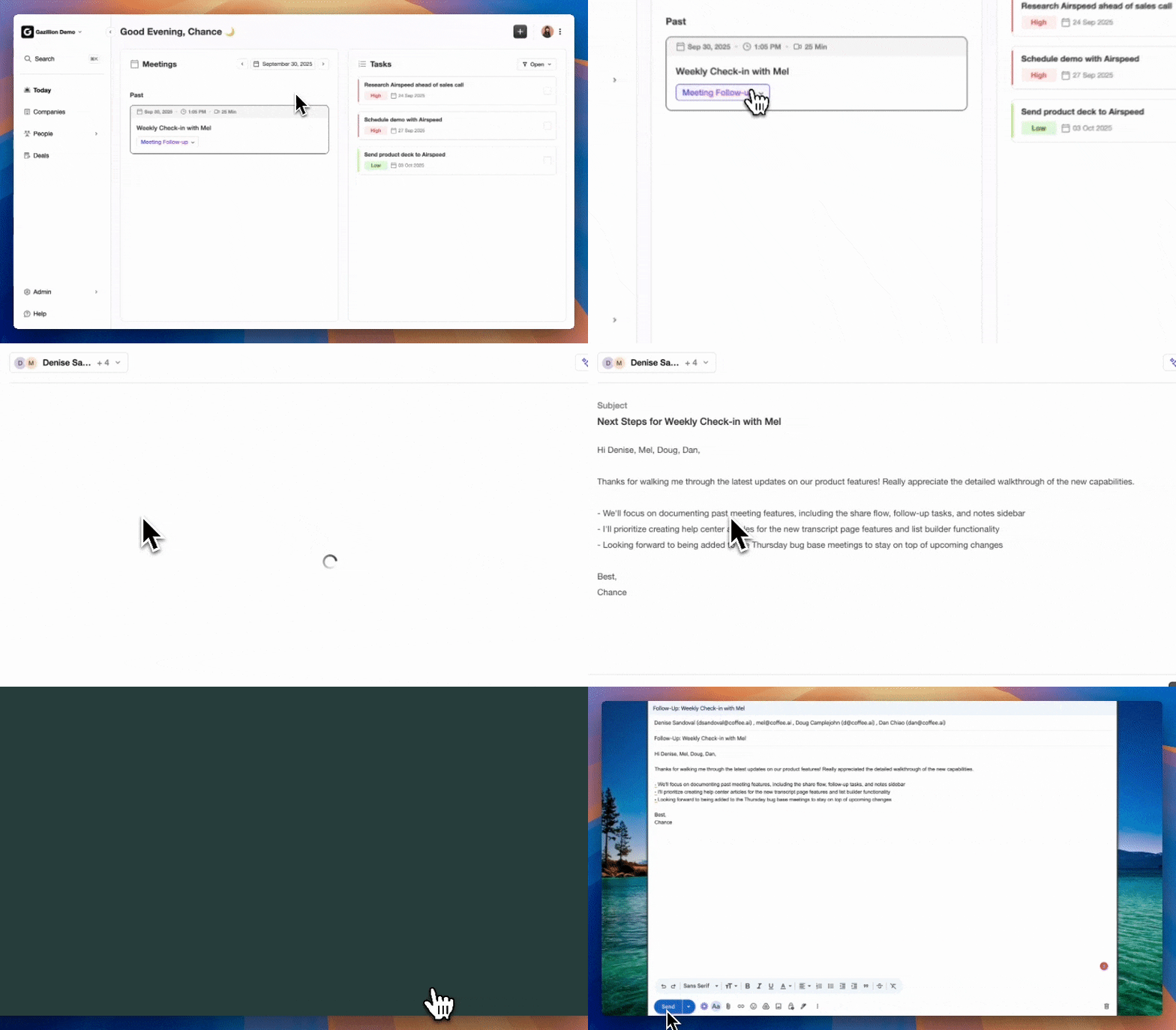
Coffee’s AI agent takes over the manual tasks that make Excel hard to maintain as a CRM. The agent creates contacts and companies from your email and calendar, enriches records with job titles and company data, and logs every interaction automatically. These workflows save 8–12 hours per week compared with updating Excel by hand.
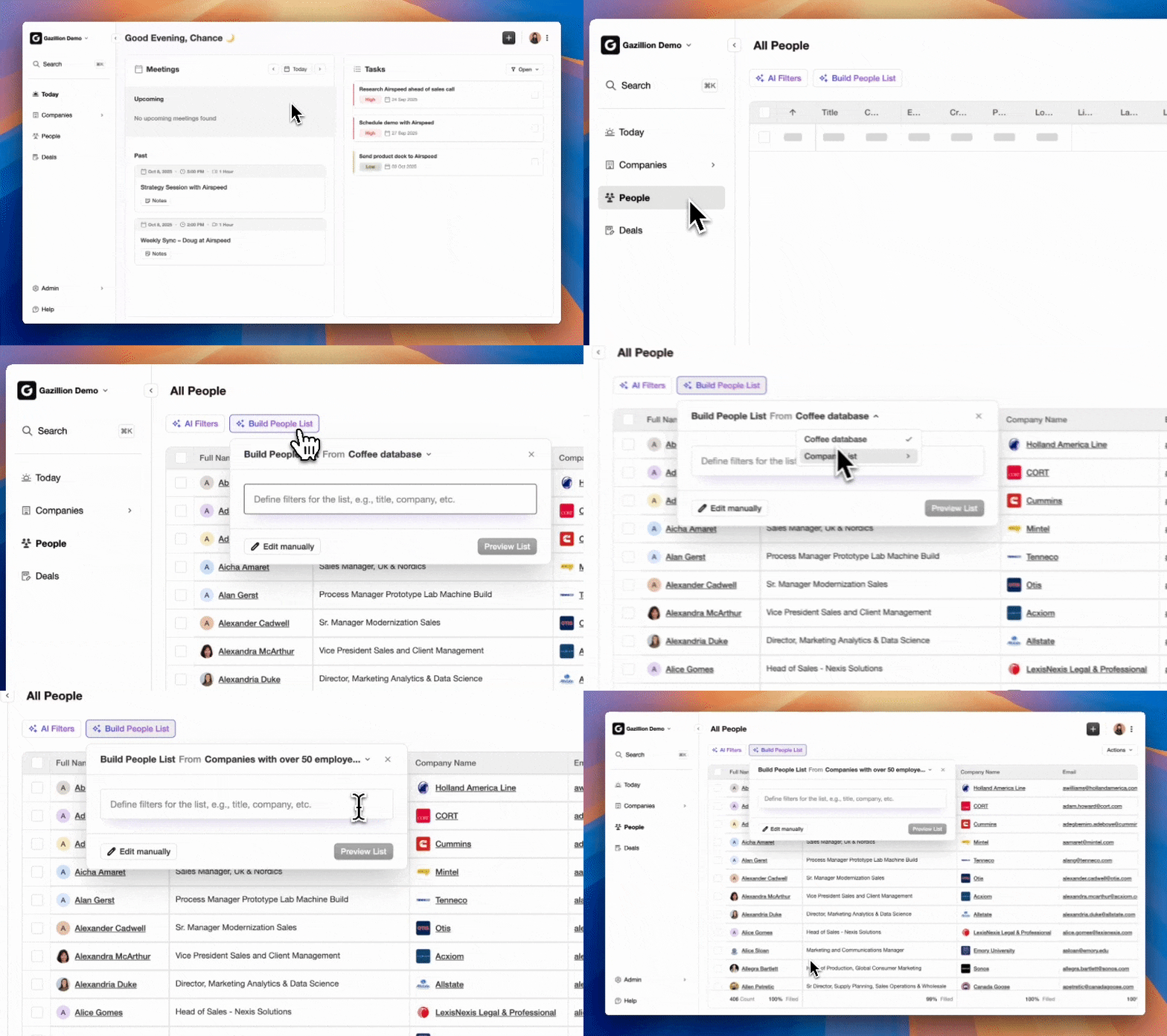
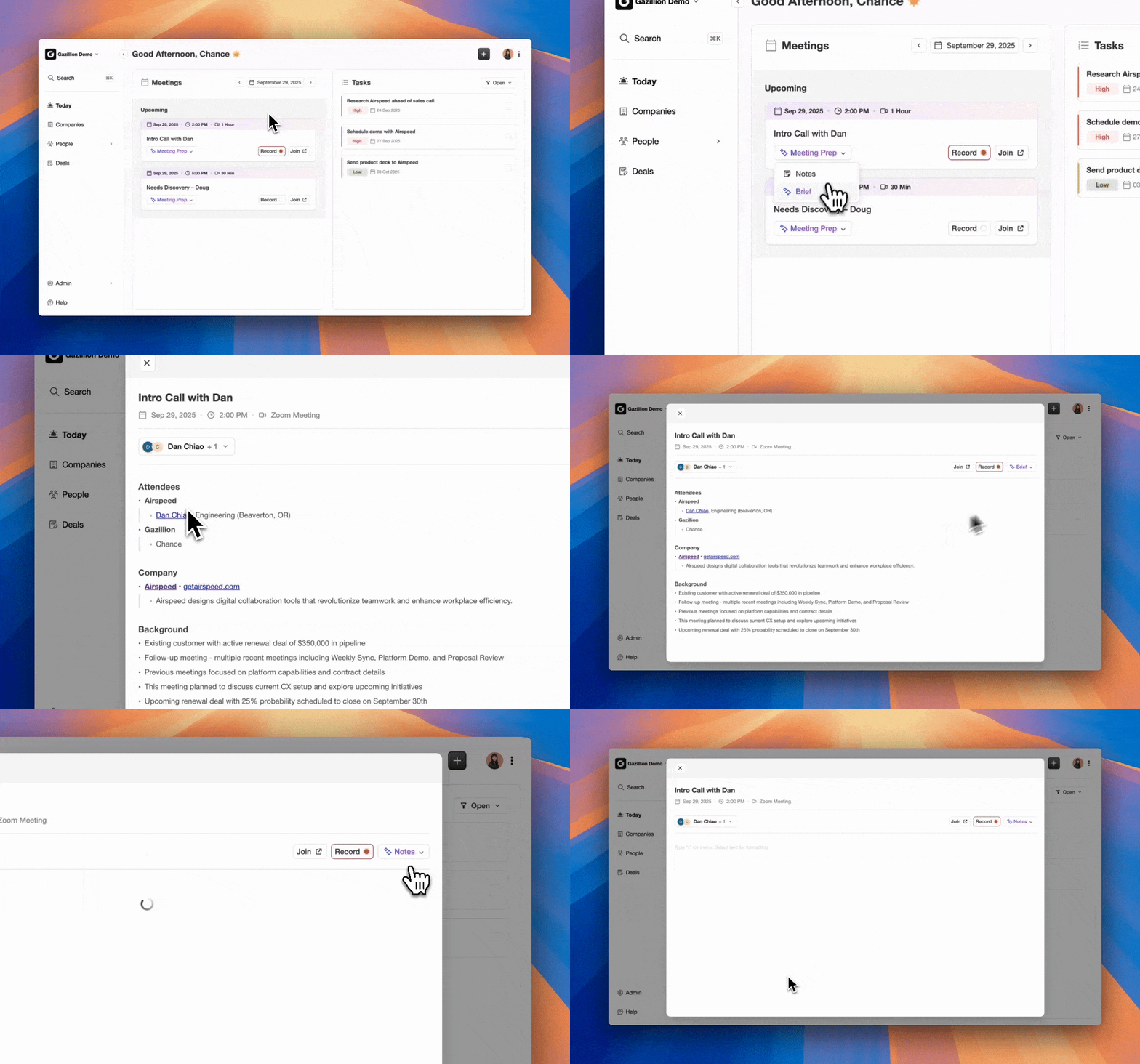
Traditional CRMs such as HubSpot or Pipedrive still rely heavily on manual data entry, even when they feel modern. Coffee’s agent actively manages your sales process by generating meeting briefings, writing post-call summaries, drafting follow-up emails, and running Pipeline Compare views that show week-over-week changes. Coffee turns your CRM into a working co-pilot so you can stay focused on conversations and closing deals.
Excel CRM Frequently Asked Questions
Can you create a CRM with Excel?
You can create a functional CRM in Excel with the free template. The template includes tabs for contacts, interactions, pipeline tracking, and dashboard views, along with built-in formulas and data validation. Excel suits small businesses with fewer than 50–70 customers that need basic contact and sales tracking without a monthly subscription.
Can Excel work as a CRM?
Excel works as a short-term CRM for solopreneurs and small teams with fewer than 50 customers. It supports contact management, interaction tracking, and simple pipeline visualization. As your business grows, manual data entry and the lack of automation make Excel slower and less reliable as a CRM.
Is there a free CRM template for Excel?
The free Excel CRM template includes four pre-configured tabs: Contacts with data validation dropdowns, Interactions with VLOOKUP formulas, Pipeline with conditional formatting, and Dashboard with PivotTables and charts. You can customize these tabs and formulas for different industries and sales processes.
What are Excel CRM limitations for small business?
Excel CRM limitations include slow manual data entry, no direct integration with email and calendar tools, no automatic follow-up reminders, limited collaboration, and weak scalability beyond 50–70 customers. These gaps become more serious as your pipeline and team activity grow.
When should you upgrade from an Excel CRM?
Upgrade from Excel CRM when you spend more than 5 hours each week organizing customer information, manage more than 50–70 customers, miss follow-ups often, need shared team access, or require email and calendar integrations. At that point, manual processes start to block sales instead of supporting them.
Excel offers a strong starting point for small business CRM needs and gives you structure without extra software costs. The free template gets you running in about 15 minutes with solid tracking and reporting. Once manual data entry takes more time than selling, Coffee’s AI agent steps in to handle the busywork while you grow revenue. Download the template today and Get started with Coffee when you are ready to move beyond spreadsheets.