Written by: Doug Camplejohn, CEO & Co-Founder, Coffee
Key Takeaways
- Access Gong call analytics by logging into the app, opening Revenue, then Dashboards or Analytics > Call Analytics, and confirming permissions in Admin settings.
- Use Salesforce embeds through the Gong Dashboards folder, then apply filters for focused insights on call outcomes and themes.
- Fix common issues such as missing permissions, sync failures, or OAuth problems with targeted admin checks and re-authorization steps.
- Explore AI conversation themes, call outcomes, performance metrics, and scorecard analytics to strengthen sales coaching and forecasting.
- Skip Gong setup and access friction with Coffee’s autonomous agent, which delivers call insights without logins or integrations.
Confirm Gong Access, Plan, and Integrations
Check your Gong account, role, and integrations before you try to open any dashboards. You need an active Gong account with the right plan and user permissions. 2026 updates include granular dashboard permissions that reserve full analytics access for admin or manager roles. If your team connects Gong to Salesforce, verify that OAuth authentication works correctly and that the Gong app is installed in your Salesforce instance.
Dashboard access strongly correlates with better sales performance. Teams using Gong dashboards report clearer visibility into call trends that support higher close rates. To maximize this visibility, use the new starred dashboards feature so your most-used analytics views always appear at the top of your list.
How to Access Gong Call Analytics Dashboard (Step-by-Step)
Use this seven-step sequence to open and work with your Gong call analytics dashboard.
- Log into the Gong App
Open your Gong workspace through the web application and confirm you see the main toolbar. The workspace includes a top toolbar for quick access to settings and workspaces. - Open the Analytics Area
Click Revenue in the main navigation. Select Dashboards, or go directly to Analytics > Call Analytics. Recent navigation changes moved Deals under the Revenue section, which now includes Account boards, Deals, Dashboards, and Forecasts. - Check Dashboard Permissions
If you do not see dashboards, review your role permissions in Admin > Settings > Roles. Any team member can use dashboards on any Gong plan, but some analytics views require elevated permissions. - Open Gong Dashboards in Salesforce (If Used)
For Salesforce users, go to the Dashboards tab and open the Gong Dashboards folder. The Gong for Salesforce app includes built-in reports and dashboards on pipeline impact, competitive mentions, and deal engagement. - Apply Filters and Explore Metrics
Use filters to narrow calls by date range, team members, or specific outcomes. Access Insights via Insights > Team, then add trackers, set adoption goals, and apply filters for calls, deals, and accounts. - Review AI-Generated Insights
Scan call outcomes, conversation themes, and performance metrics to spot patterns. Engage Analytics shows AI-generated call and email outcomes, including manual and AI-generated call outcomes such as Follow up, Meeting booked, and Bad timing. - Export and Share Data
Use export tools to download reports or share dashboard views with your team. Recent updates added export and import for target values and tabular data views in dashboards.
Pro Tip: Star your most-used dashboards for faster access. This 2026 feature keeps starred dashboards pinned at the top of your list.
Fixing Common Gong Dashboard Problems
When your Gong activity dashboard does not appear or you run into access problems, start with the most frequent root causes. The table below links each common issue to its likely cause and the specific fix you can apply.
| Issue | Cause | Fix |
|---|---|---|
| Activity dashboard not showing | Missing role permissions or Salesforce auto-import disabled | Check Admin > Roles, then enable “Automatically import new team members from Salesforce” |
| No calls loading in dashboard | Integration sync failure or OAuth issues | Re-authorize OAuth connection, then run Field Health diagnostic in Settings > CRM |
| Salesforce access denied | Incorrect API scopes or field mapping | Verify credentials with the one-click diagnostic, remap missing fields, then trigger a manual re-sync |
Common dashboard issues include team members not being imported automatically from Salesforce, which prevents Gong from identifying opportunity owners. Without correct team provisioning settings, deals will not appear in your dashboard view.
If you want to avoid recurring fixes and admin work, try Coffee’s autonomous agent to remove these technical headaches entirely.
What You Get Inside Gong Dashboards
Your Gong call analytics dashboard offers several focused features that support sales intelligence and coaching.
- AI Conversation Themes: The Gong Insights dashboard provides team-level analysis of sales conversations and automatically groups themes across calls.
- Call Outcomes Tracking: Manual and AI-generated outcomes such as meeting booked, follow-up required, and qualification status.
- Performance Metrics: Connect rates, call duration, and Economic Pulse data when you enable the right trackers.
- Scorecard Analytics: Views of top performers, scoring completion rates, and manager feedback trends.
These capabilities provide rich sales intelligence, yet they also demand significant manual configuration and ongoing maintenance. Separate Gong modules often store related data in different places, which can create partial views of your sales pipeline.
Why Switch to Coffee: The Seamless Gong Alternative
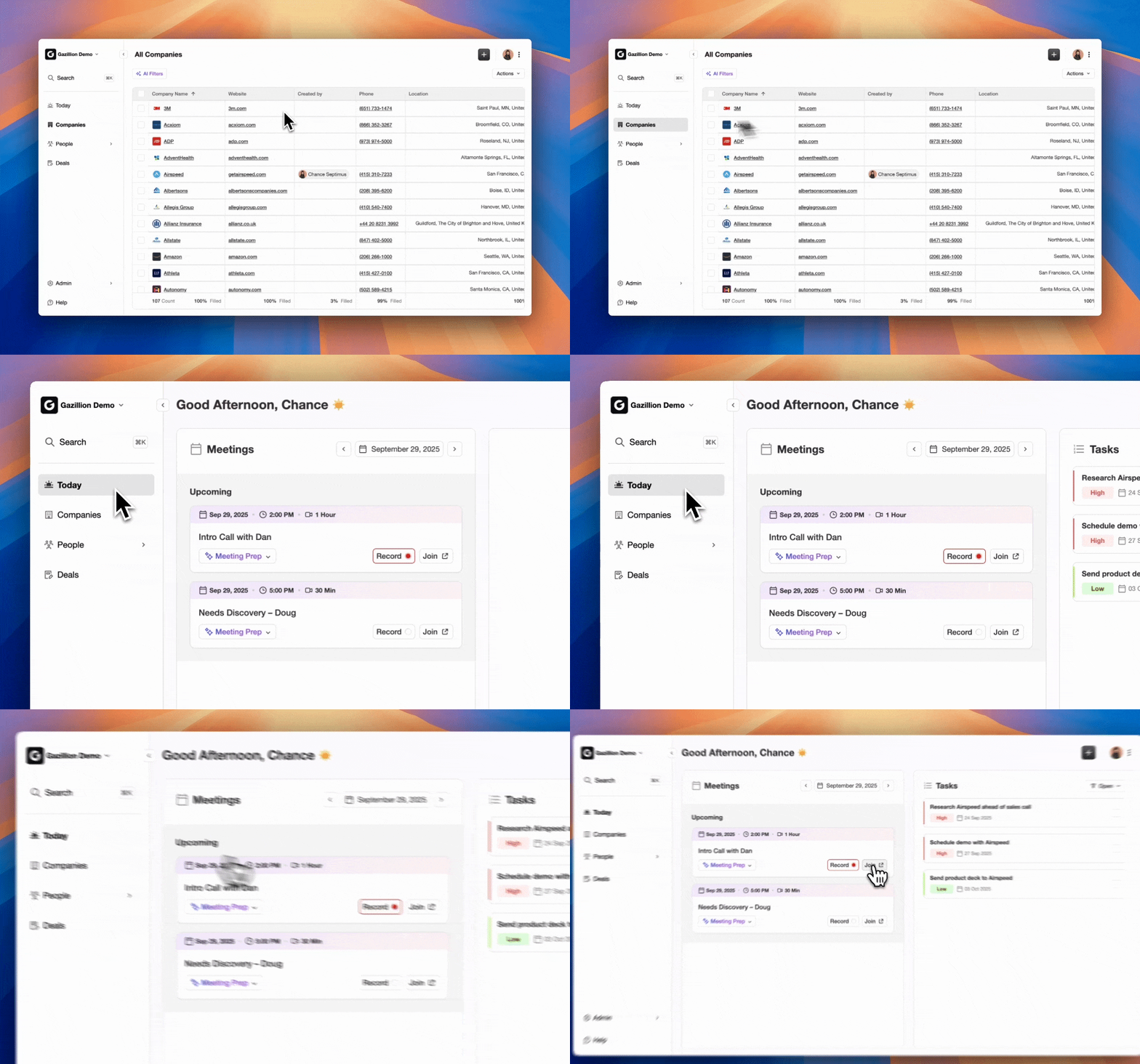
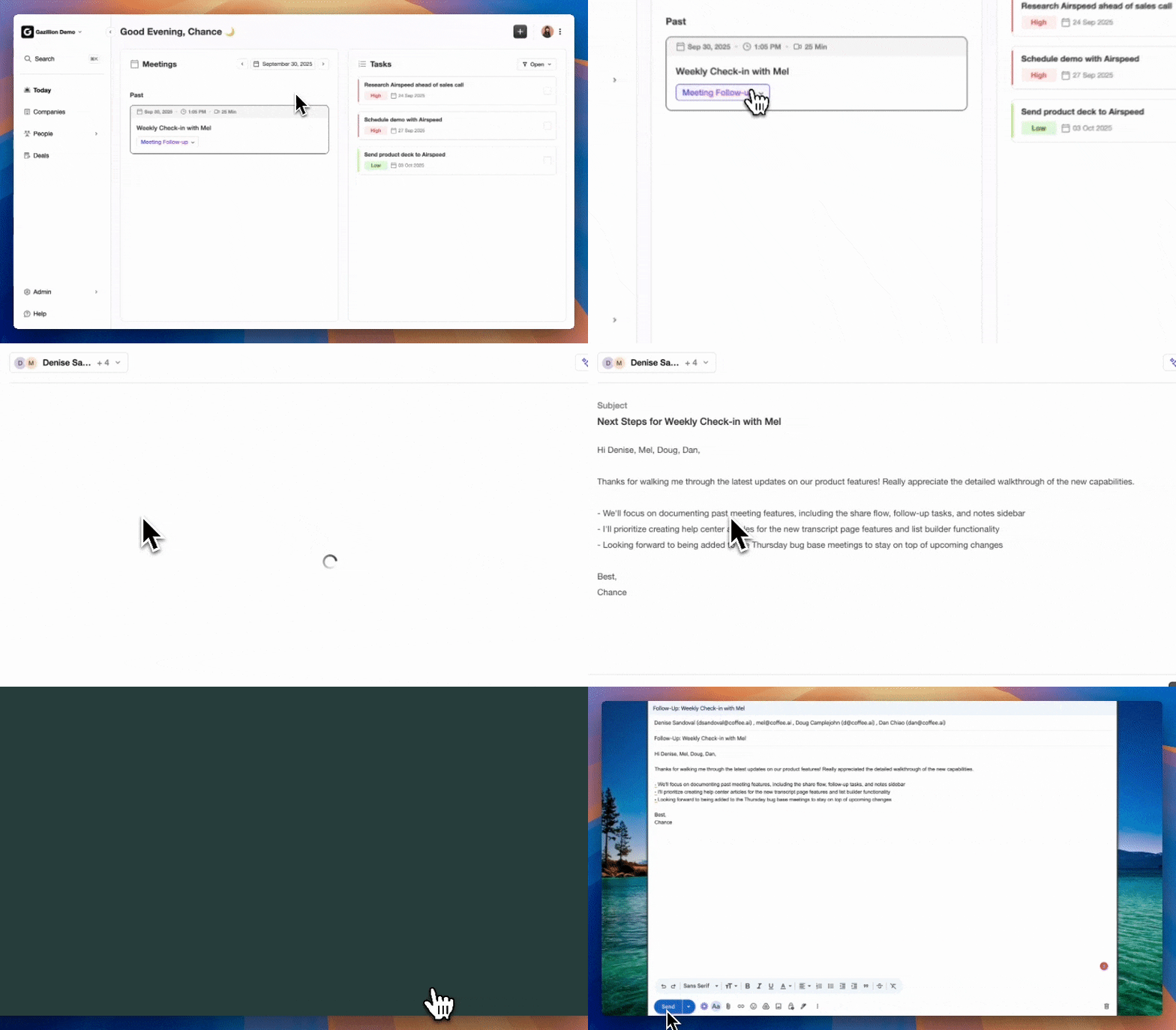
Many teams outgrow Gong once access issues, permissions, and integrations start to slow them down. Coffee’s autonomous agent delivers always-on call analytics without that technical complexity. Gong depends on manual dashboard navigation, permission management, and frequent troubleshooting. Coffee’s agent instead captures, transcribes, and analyzes every sales interaction automatically.
Compare Coffee’s advantages with traditional Gong dashboards:
- Zero Integration Hassles: The AI agent connects directly to Zoom, Teams, and Google or Microsoft 365 with straightforward authentication.
- Autonomous Data Entry: Reps reclaim 8 to 12 hours each week that they previously spent on manual CRM updates.
- Pipeline Compare Feature: Week-over-week visual analytics replace manual spreadsheet exports and ad hoc reports.
- Unified Data Intelligence: Structured CRM data combines with call transcripts and email content in a single view.
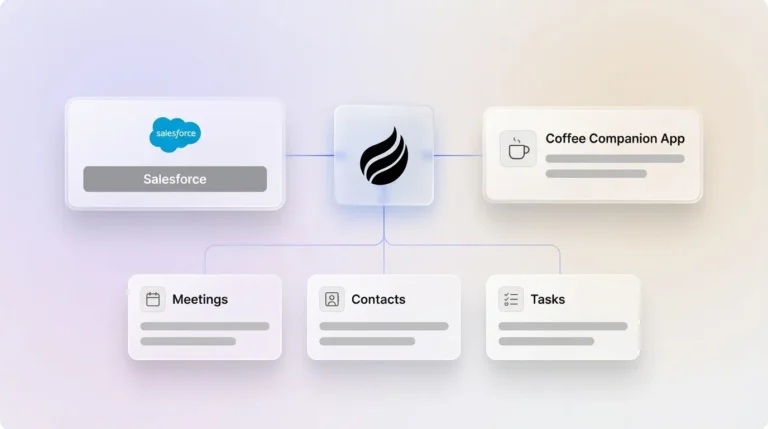
Coffee supports teams that need a standalone CRM and also works as a Companion App for existing Salesforce or HubSpot instances. SOC2 compliance and transparent pricing keep it accessible for small to mid-market teams that feel blocked by Gong’s complexity. This accessibility translates to real results: a company generating tens of millions in revenue recently replaced spreadsheet-based sales tracking with Coffee’s agent and now runs automated pipeline reviews with clean CRM data.
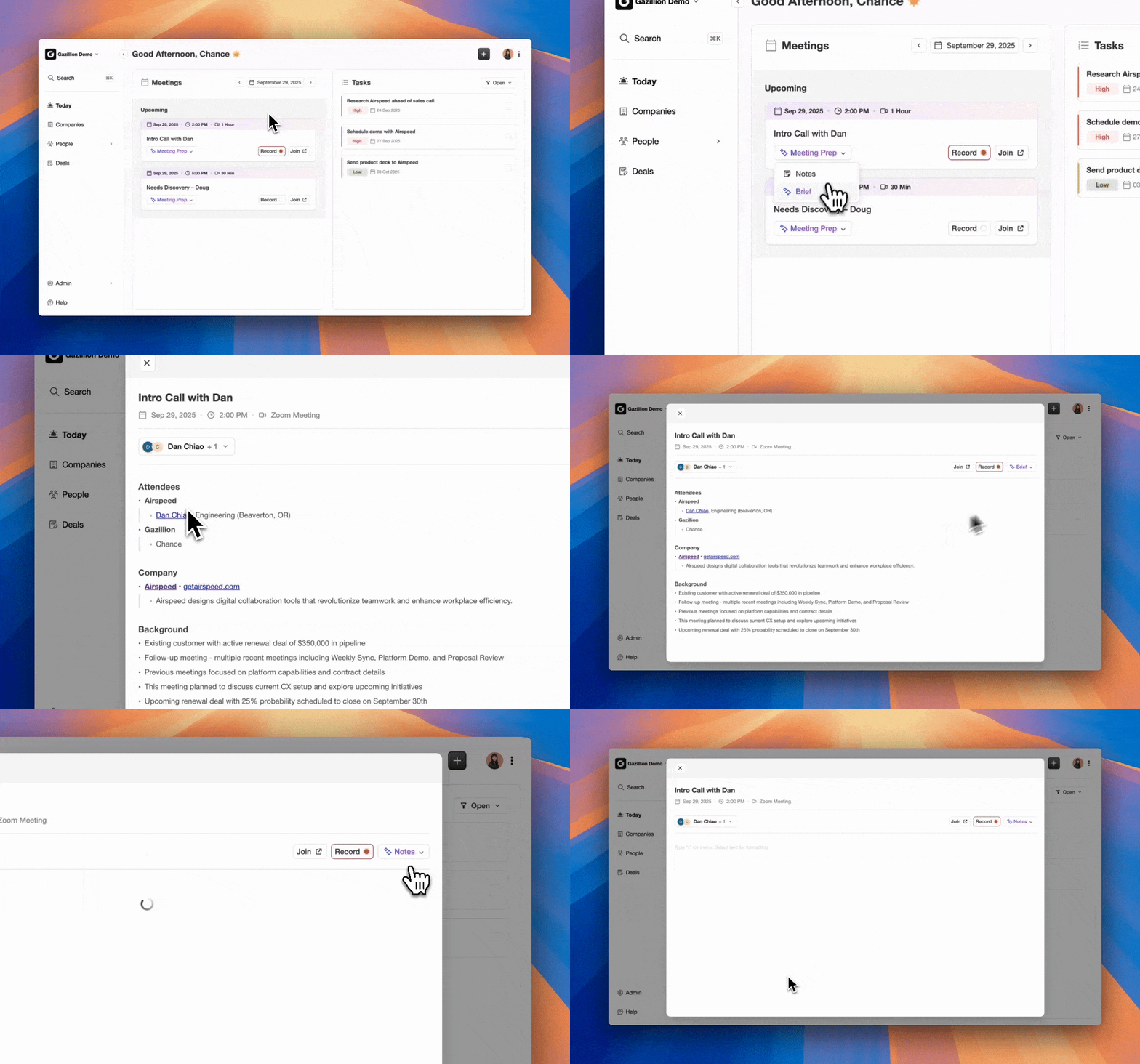
If Gong limitations are slowing your team, start your free Coffee trial for effortless call analytics that work automatically.
2026 Migration Tips for Moving from Gong to Coffee
Teams moving from Gong’s manual dashboard system to Coffee’s autonomous agent can follow a simple three-step migration path. First, connect your Google Workspace or Microsoft 365 account so the agent can access meetings, emails, and calendars. Next, let the agent auto-populate your CRM with enriched contact and company data, replacing manual data entry. Finally, use Zapier for any remaining legacy integrations that still matter to your workflow.

Once these steps are complete, Coffee’s agent begins delivering instant pipeline reviews without the permission errors or Salesforce glitches that often affect Gong users.
FAQ
Why is my Gong activity dashboard not showing up?
The most common cause is missing role permissions or disabled Salesforce auto-import settings. Go to Admin > Settings > Roles and confirm your dashboard access permissions. If your team uses Salesforce integration, ensure that “Automatically import new team members from Salesforce” is enabled in team provisioning settings. Without this configuration, Gong cannot identify opportunity owners, and their deals will not appear in dashboard views.
How do I access Gong dashboards through Salesforce?
Open Gong data in Salesforce by going to the Dashboards tab and locating the Gong Dashboards folder. This view requires the Gong for Salesforce app, which your admin must install and configure. The integration creates custom objects for call data, pre-built reports for competitive mentions and pipeline impact, and canvas apps that display highlights and transcripts directly inside Salesforce records.
What should I do if my Gong dashboard shows no calls loading?
No calls loading usually indicates an integration sync failure or OAuth authentication problem. First, re-authorize your OAuth connection in Settings > Integrations. Then run the Field Health diagnostic tool in Settings > CRM to find any field mapping issues. If calls still do not appear, confirm that your email and calendar connections to Google Workspace or Microsoft 365 remain active, because these systems supply the source data for call imports.
Is Coffee a better alternative to Gong for call analytics?
Coffee removes the permission management, integration troubleshooting, and manual dashboard navigation that many Gong users face. Gong expects admins and reps to maintain access, integrations, and dashboards by hand. Coffee’s autonomous agent instead captures and analyzes all sales interactions in the background. The agent saves 8 to 12 hours per week on data entry, delivers unified pipeline intelligence, and works smoothly with existing CRM systems without the access issues common in Gong implementations.
Can I export data from Gong dashboards for external analysis?
Gong provides data export options through its dashboard interface, but many teams experience limits on export formats and volume, and broader API access often sits behind higher-tier plans. Coffee’s agent offers more flexible data access and connects with external analytics tools through its API. This approach gives you fuller control over sales intelligence data without the export constraints that many Gong users encounter.
Use these steps to stabilize your Gong dashboard access, or move to a system that handles the work for you. See how Coffee simplifies call analytics with insights that arrive automatically, without the manual complexity of traditional dashboard systems.