Written by: Doug Camplejohn, CEO & Co-Founder, Coffee | Last updated: July 19, 2026
Key takeaways for Gong and Coffee users
- Gong stores call recordings in its Conversations library and syncs them as activities in Salesforce and HubSpot for direct CRM access.
- Recordings appear in Salesforce and HubSpot timelines within 30 minutes and include links to full transcripts and AI summaries.
- Users can download recordings as audio or video files and configure retention periods up to three years through Gong admin settings.
- AI-generated briefs, highlights, and points of interest live on the Gong call page and sync into CRM fields for quick review.
- Coffee’s autonomous agent removes manual review by writing structured Gong summaries straight into Salesforce or HubSpot — see pricing and features.
Where you can view Gong call recordings
Gong stores recorded conversations in its Conversations library. Clicking any call in the Conversations library opens a dedicated call page with playback controls, a transcript panel, and AI insights. Revenue teams that already live in a CRM usually move faster when they open recordings directly from the contact, deal, or opportunity record instead of switching tabs.
Confirm three prerequisites before you try any access method:
- Your Gong permission profile has the Calls setting enabled. Gong admins configure call recording visibility under Admin center > Settings > People > Permission profiles by turning the Calls setting on for each profile.
- The Gong–CRM integration is active and authenticated for your workspace.
- You hold at least a read-only Gong seat. Any teammate with the right permissions and a seat can review calls with the native call page features.
Accessing Gong recordings in Salesforce
[Screenshot placeholder: Salesforce Opportunity timeline showing a Gong Activity record with a transcript link]
Within 30 minutes of a call ending, the recording typically appears as an Activity on the matching Opportunity record in Salesforce. Use these steps to open it:
- Open the Opportunity, Contact, or Account record in Salesforce.
- Scroll to the Activity timeline and find the Gong event entry.
- Click the activity to expand it. A direct link to the Gong recording appears in the event body.
- Click the link to open the full Gong call page in a new tab with transcript, AI summary, and playback controls.
If the Gong for Salesforce managed package is installed, pre-built Lightning components such as a Gong Calls related list, Gong Deal Score card, and Gong MEDDPICC panel can be added to Opportunity page layouts for native access to recordings and insights.
Troubleshooting: Users must have read permissions to the Gong Conversation object and all related custom objects to view the Gong app and its data. This requires the Gong for Salesforce managed package on Enterprise Edition or higher. If recordings are missing entirely, Gong can auto-create contacts or leads in Salesforce for unknown call participants when the optional Enrich Contacts and Lead flow is active.
Accessing Gong recordings in HubSpot
[Screenshot placeholder: HubSpot Deal timeline showing a Gong-synced Call activity with highlights and recording URL]
Gong-recorded calls and meetings sync into HubSpot as Activities attached to the correct contact, company, and deal records. Follow this path to reach them:
- Open the Contact, Company, or Deal record in HubSpot.
- Go to the Activity feed on the record timeline.
- Find the Gong call entry. Call highlights, the recording URL, and participant details appear under a new meeting in HubSpot CRM linked to Company, Deal, or Contact records.
- Click the recording URL to open the Gong call page, or scan the highlights inline without leaving HubSpot.
To turn this sync on, navigate to Gong → Settings → CRM → HubSpot and enable Sync calls and meetings. Gong then pushes conversations as HubSpot Activities of Call or Meeting type.
Troubleshooting: If activities do not appear, confirm that the HubSpot integration user has write access to the Calls and Meetings objects. Check that participant email addresses in Gong match contact records in HubSpot, since mismatched emails block automatic association.
Downloading Gong recordings for offline use
[Screenshot placeholder: Gong call page action menu with the Download option highlighted]
Gong call recordings can be downloaded as audio or video files from the call page action menu for offline listening. Use this simple flow:
- Open the call from the Gong homepage, Activity page, or Conversations library.
- Click the action menu (three-dot icon) on the call page.
- Select Download, then choose audio or video format.
- Save the file locally or upload it to a shared drive for distribution.
Alternatively, Gong users can generate a follow-up email from the call page that includes a meeting summary. This option shares key details without creating a separate file.
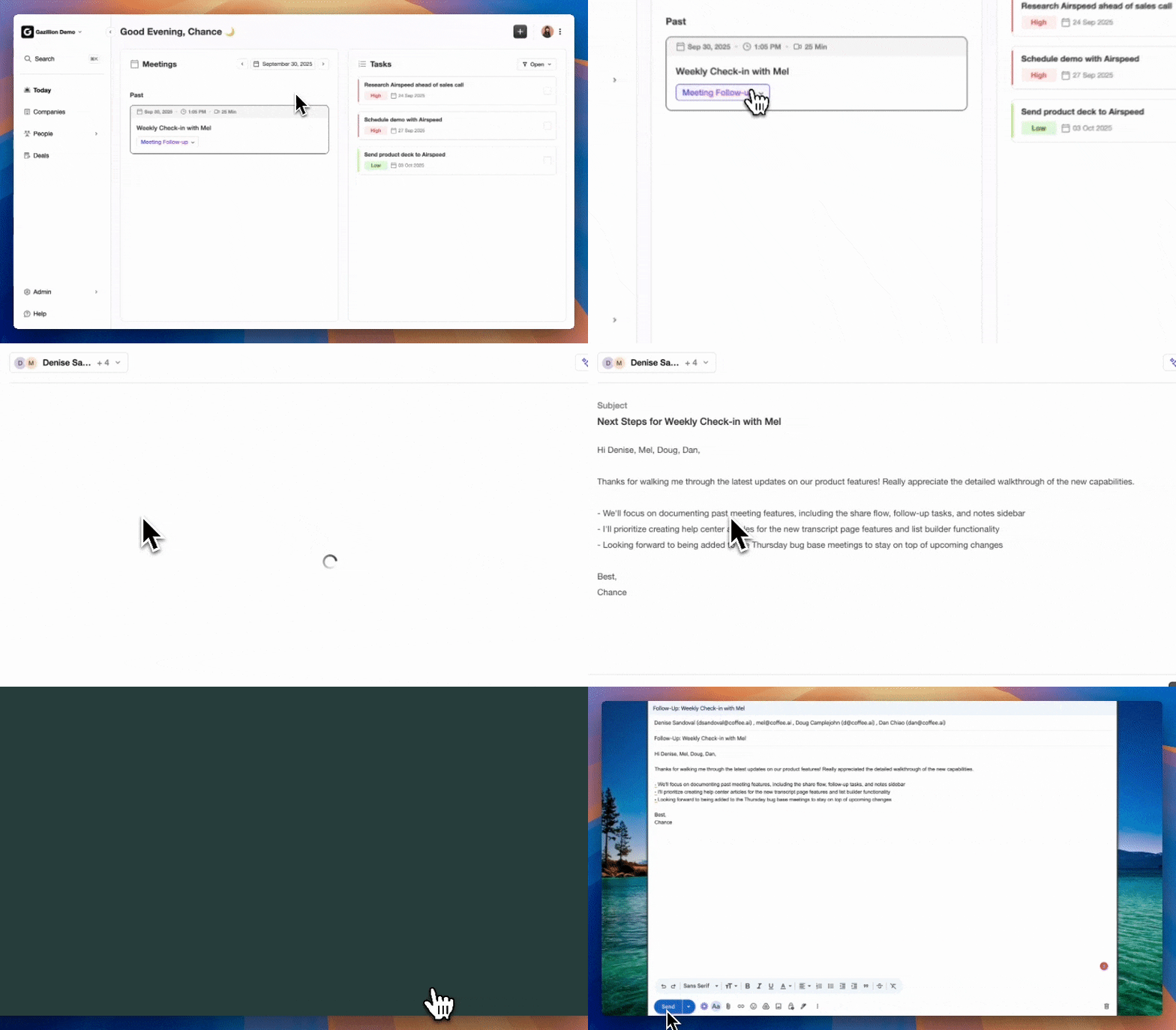
Troubleshooting: Download availability depends on your Gong permission profile. If the Download option does not appear in the action menu, ask your Gong admin to confirm that the permission is enabled for your profile.
How long Gong keeps your recordings
[Screenshot placeholder: Gong Admin center Data protection settings panel showing retention configuration]
Gong stores every recorded call in the cloud, encrypted at rest and in transit, with customizable access permissions for compliance and fast search. Gong publishes a standard retention period of the lesser of three years or customer tenure, and admins can adjust this in Data protection and privacy settings. Non-standard periods are available on request.
For teams in regulated industries, retention requirements vary by rule set. Financial services firms must retain call recordings related to transactions for a minimum period under regulations in the EU or EEA and the United States, typically between three and seven years depending on jurisdiction and transaction type.
Teams that need recordings beyond the configured retention window should download them using the method above and archive them in their own storage environment before the deletion date.
Troubleshooting: If a recording you expect to see is missing, ask your Gong admin whether the retention period has elapsed or an automated deletion policy removed it.
Finding call files, briefs, and AI summaries
[Screenshot placeholder: Gong call page showing the Briefs tab with Highlights, Key Points, and Next Steps sections]
Use these tools to jump to the moments that matter:
- Open the call page and click the Points of Interest tab. This tab surfaces playbook mentions, speaker-tagged questions, tracked phrases or concepts, and excessive filler words, with labels that jump to the matching transcript snippet.
- Use the Transcript panel on the left. Clicking any line in the transcript jumps to that moment. Users can search for words or phrases and select text to create snippets, share content, or add comments.
- Check the Slides tab if a presentation was shared. The Slides tab lists every slide, the time and duration each slide was displayed, and lets users jump straight to that point in the recording.
Troubleshooting: AI summaries require a minimum transcript length. If the Briefs tab is empty, transcription may have failed because of audio quality issues.
When Gong call review still feels manual
Every method above depends on a rep or manager to start the review. They must open Gong, find the call, read the summary, then copy key details into the CRM. AI Meeting Intelligence cuts average enterprise AE post-call CRM note-taking time from 15–20 minutes per discovery call to a 2–3 minute review-and-confirm workflow, recovering 75–100 minutes of selling time daily for reps running five calls. That time savings only appears when the AI writes structured notes directly into the CRM instead of leaving reps to copy and paste.
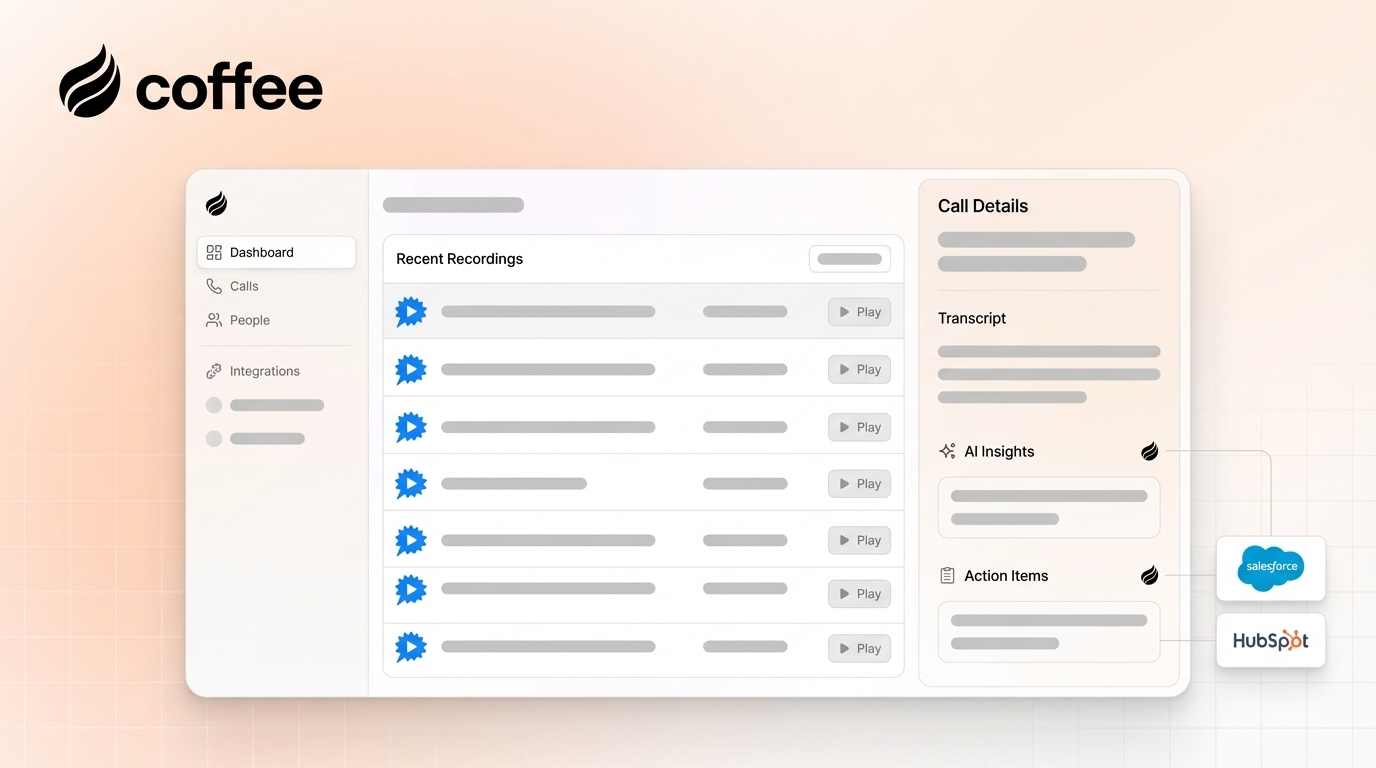
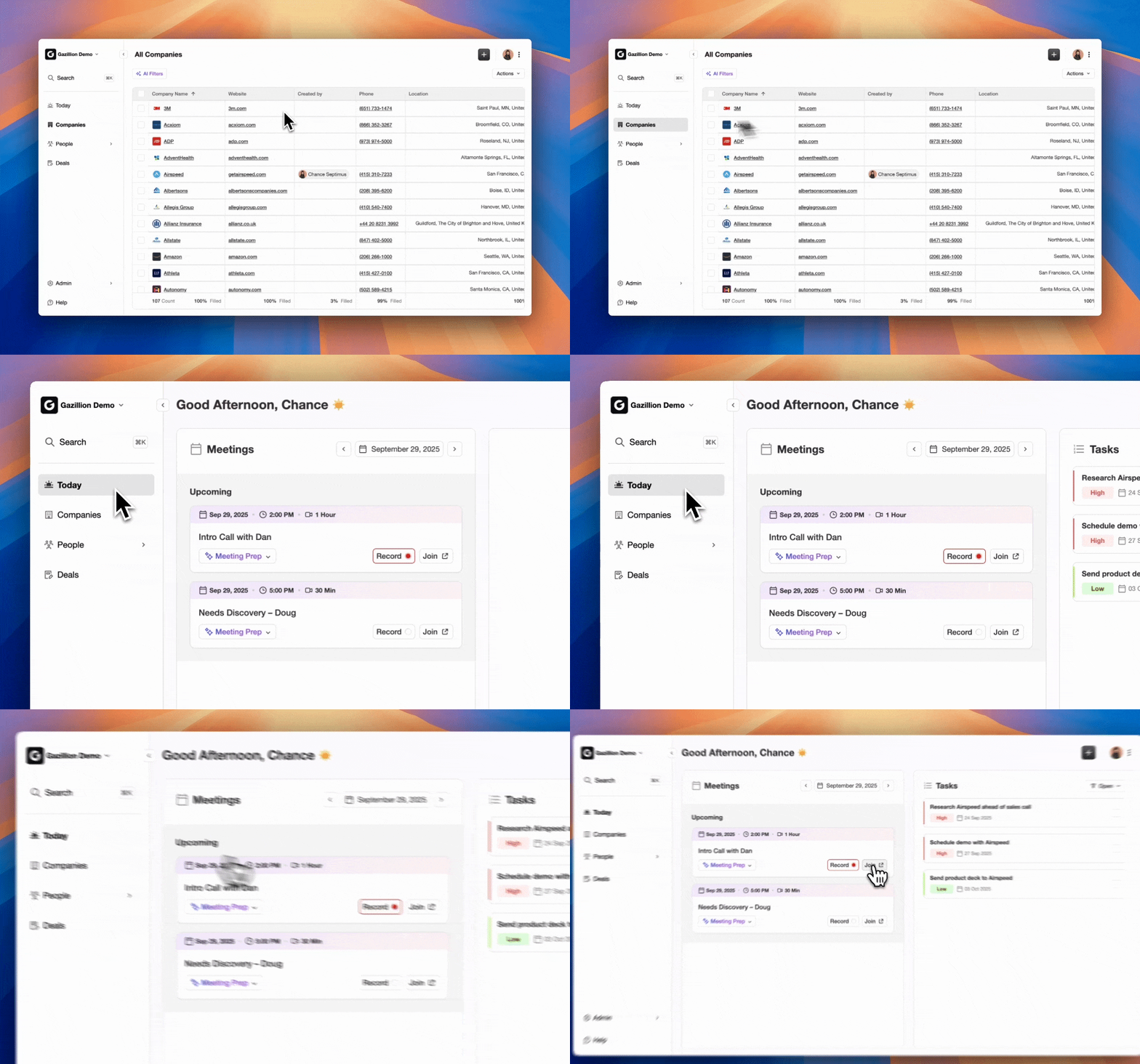
Coffee’s Companion App for Salesforce and HubSpot deploys an autonomous agent that joins calls on Zoom, Teams, or Meet, then transcribes and summarizes the conversation. The agent writes structured notes formatted to BANT, MEDDIC, or SPICED back to the correct CRM record automatically. The agent handles data entry so the system of record stays accurate without human effort. No toggling. No copy-paste. No missing fields.
How Coffee and Gong handle CRM workflows
The table below compares how Gong and Coffee manage four critical post-call workflows: CRM data entry, activity logging, pipeline intelligence, and manual effort. Use it to decide which setup matches your team’s data accuracy and automation needs.
| Capability | Gong | Coffee Companion App | Notes |
|---|---|---|---|
| CRM Data Entry | Call recap written to description field of Calls, Notes, or Meetings objects in HubSpot; Conversation and Task objects in Salesforce | Agent autonomously creates and updates Contact, Company, and Activity records and writes summaries and next steps to the correct CRM record after each call | Gong writes a recap field, while Coffee writes structured, methodology-aligned notes across multiple CRM objects |
| CRM Logging | One Event record per call written to the Activity or Event object in Salesforce with calendar timestamp, participant list, and a direct link to the Gong recording | Agent logs last activity, next activity, and full call summary without any manual step | Gong logs a link, and Coffee logs the content |
| Pipeline Intelligence | Deal risk scores written to Opportunity records through a bidirectional Salesforce sync | Pipeline Compare shows week-over-week deal changes, flags stalled opportunities, and tracks pipeline mutations from a built-in data warehouse | Both surface deal signals, while Coffee aggregates them across the full pipeline without a separate Gong dashboard visit |
| Manual Steps Required | Rep must open Gong, find the call, read the summary, and copy relevant data into CRM fields | Coffee expanded call recording options in January 2026 through Zapier integration with tools including Gong, Fathom, and Fireflies. The agent processes the recording and writes outputs to CRM with no rep action required | Coffee removes the review-and-copy step entirely |
Validation checks and scaling tips
After you configure any access method, run this checklist to confirm that Gong and your CRM stay in sync:
- A Gong Activity or Event appears on the CRM record timeline at the expected sync interval after call end.
- The AI summary or recap is populated in the correct CRM field, such as description for HubSpot or the Conversation object for Salesforce.
- No duplicate activity records exist for the same call. Gong recommends one activity per call rather than one per participant to avoid inflated activity counts in Salesforce reports.
- The recording link in the CRM activity opens the correct Gong call page without a permissions error.
For teams scaling beyond 10 reps, assign a dedicated Gong integration user in Salesforce instead of a named employee account. If the connecting user is deactivated, the integration disconnects. A dedicated integration user with API Enabled and Approve Uninstalled Connected Apps permissions prevents this failure. The same principle applies to HubSpot, where RevOps teams should audit the Gong sync settings quarterly to confirm the Sync calls and meetings toggle stays active after any HubSpot portal migration or permission change.
Frequently asked questions about Gong recordings
Where are my call recordings stored?
Gong stores all recorded calls in its own cloud infrastructure, encrypted at rest and in transit. When the Salesforce or HubSpot integration is active, a link to each recording is also written to the corresponding CRM Activity record, while the audio and video files remain hosted in Gong. Teams that require recordings to live outside Gong for compliance, archival, or stack consolidation can download individual files from the Gong call page action menu and upload them to their own storage. Coffee’s Companion App processes call recordings through its agent and writes structured outputs such as summaries, next steps, and methodology-aligned notes directly into Salesforce or HubSpot, so the actionable content lives in your CRM regardless of where the raw audio sits.
Does Gong record every call?
Gong records a call only when several conditions are met. The meeting must be scheduled at least 30 minutes in advance so the Gong bot can scan the calendar and join. A valid, unshortened web conferencing URL must appear directly in the calendar invite. Meetings marked as Private in the calendar hide event details from Gong and block the bot from joining. If a waiting room is enabled, the Gong bot must be admitted manually or automatically, or the call goes unrecorded. Company-level consent policies, exclusion lists by domain or email, and provider-specific settings such as MS Teams CAPTCHA requirements can also prevent recording. Tech admins manage these settings in the Gong Admin center under Data capture.
How long does it take Gong to analyze a call?
Gong processes and analyzes a recorded call after it ends. The AI-generated Highlights brief, key points, next steps, and Points of Interest appear on the call page once processing finishes. The Salesforce Activity record with the recording link appears at the standard sync interval mentioned earlier when the integration is correctly configured. Processing time varies based on call length and platform load.
How do I add a recording to Gong?
Gong captures calls automatically when its bot joins a scheduled web conference. To ensure a call is recorded, place a valid web conferencing URL in the calendar invite at least 30 minutes before the meeting, confirm your Gong settings show a green checkmark under Web conference recording in My Settings, and make sure the meeting is not marked Private. For calls that were not captured automatically, such as recordings made on a separate platform, Gong supports manual upload through its interface so teams can import audio or video files for transcription and AI analysis. Coffee’s Companion App extends this further, since its agent joins calls directly on Zoom, Teams, or Meet, records and transcribes the conversation, and writes the structured summary back to the CRM record without any manual upload step.