

Key Takeaways
- Manual form submissions waste 71% of sales reps’ time, while automation saves 8-12 hours weekly and improves data quality.
- Use native HubSpot workflows triggered by form submissions to send emails, create tasks, and nurture leads with delays and branches.
- Connect Zapier for external forms like Typeform and map fields precisely to avoid duplicate records and inconsistent data.
- Coffee’s AI Agent delivers hands-free automation by enriching contacts from emails and calendars and triggering workflows on its own.
- Track metrics such as 30% faster responses and 3x more leads, and get started with Coffee for a complete HubSpot transformation.
Prerequisites for Automating HubSpot Forms
Set up a few essentials before you automate HubSpot forms. You need:
- HubSpot Pro or Marketing Hub subscription with workflow permissions
- Basic understanding of HubSpot workflow enrollment triggers and actions
- Google Workspace or Microsoft 365 for advanced AI integrations like Coffee
- 30-60 minutes for initial setup at a beginner to intermediate skill level
Teams typically save 8-12 hours per week on manual data entry and achieve 30% faster lead response times with 3x more qualified leads.
7-Step Quick Start for HubSpot Form and Workflow Automation
Use this sequence to capture quick automation wins from your HubSpot forms.
- Create your HubSpot form with clear field mapping and validation rules.
- Build a workflow trigger using the “Contact submitted form” enrollment criteria.
- Add delays and branches for nurturing sequences and conditional logic.
- Connect Zapier for external forms like Forminator or multi-step processes.
- Handle multi-step forms with progressive profiling and data standardization.
- Integrate Coffee Agent for autonomous data capture, enrichment, and activity logging in HubSpot.
- Test and monitor workflow performance with enrollment reports and error tracking.
Native HubSpot Workflows for Form Submissions
Step 1: Build Form-Triggered Workflows in HubSpot
Create workflows that enroll contacts automatically when they submit specific forms. HubSpot’s Breeze Assistant now generates automations from prompts such as “When a contact submits our demo form, then send a welcome email and create a sales task”. Go to Automation > Workflows, choose a contact-based workflow, and set the enrollment trigger to “Contact submitted form.”
Triggering Workflows from HubSpot Form Submissions
Configure enrollment criteria by selecting your specific form and adding property filters when needed. You can also create simple workflows directly from the form editor to send emails or create tasks after submission. Add delays between actions, such as 5-10 minutes for immediate follow-ups and 1-3 days for nurturing, and use if/then branches based on lifecycle stage or lead score.
Practical HubSpot Workflow Examples for Forms
Use three proven templates to cover common form scenarios. A lead nurturing sequence sends a welcome email, then educational content, then a demo booking prompt. A sales notification workflow sends an instant Slack alert and creates a task for high-value leads. A re-engagement campaign waits 30 days, checks last activity, then sends targeted content.
Apply a few safeguards to keep these workflows clean. Use suppression lists to avoid emailing existing customers. Enable “Update existing contact” to prevent duplicates. Use Breeze intelligence to detect enrollment rate changes and trigger notifications.
Using Zapier to Connect External Forms to HubSpot
Zapier connects non-HubSpot forms to your CRM so every submission feeds your workflows. Capture external form data, format it correctly, and log it directly into HubSpot to remove manual entry. Create a new Zap with your form tool, such as Forminator, Typeform, or Gravity Forms, as the trigger.
Map each form field to the correct HubSpot contact property to keep data consistent. Use Filter by Zapier to separate high-intent leads and route them to specific actions such as updating HubSpot contacts. For multi-step forms, configure progressive updates that add new information instead of overwriting existing records.
Close common gaps by standardizing phone numbers and dates with Zapier’s Formatter tool. Test workflows with sample data before launch, and set up error notifications for failed submissions. Monitor integration health with weekly sync stats and real-time alerts for faults.
Scaling HubSpot Automation with Coffee’s AI Agent
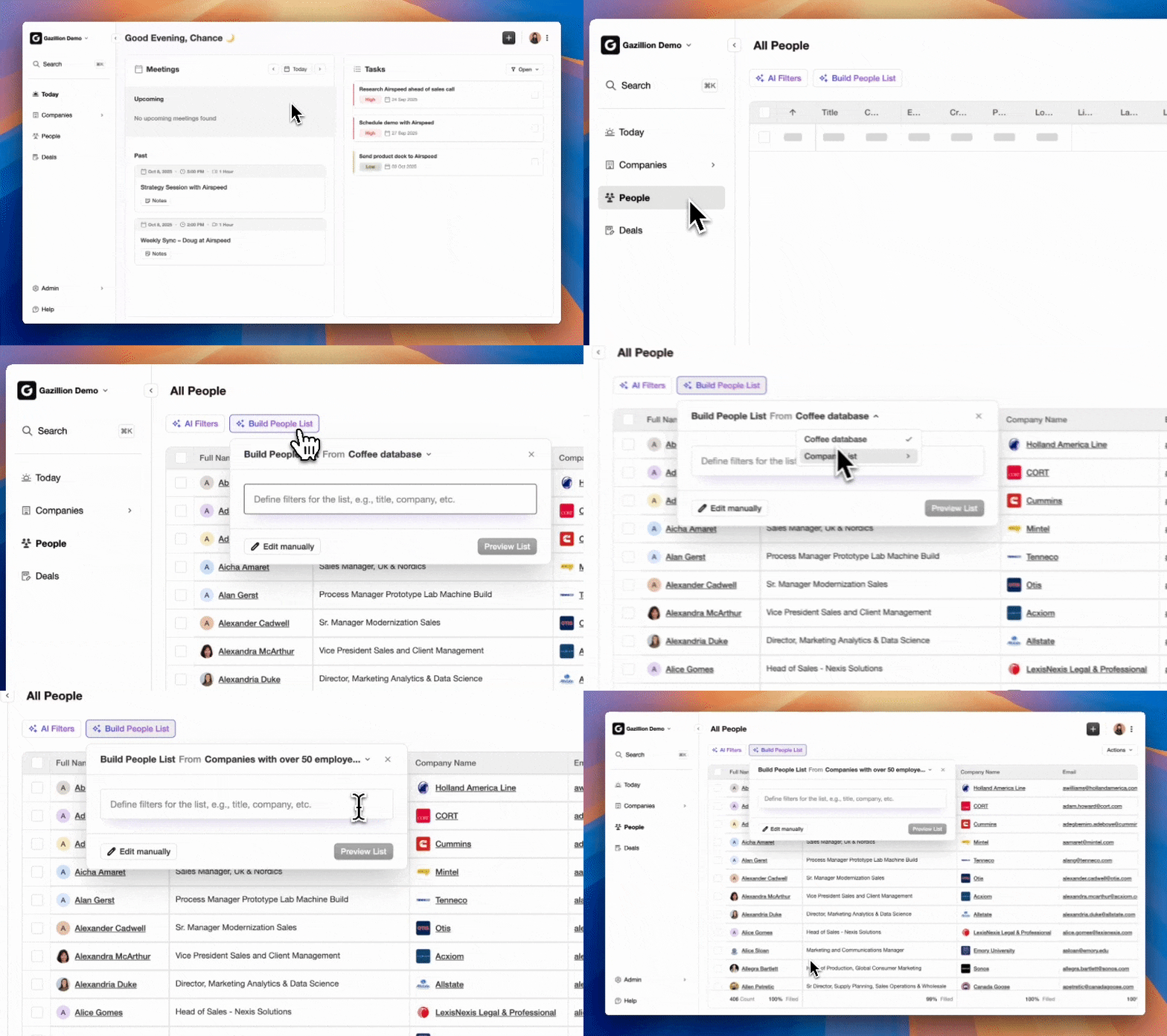
Coffee’s AI Agent extends HubSpot and Zapier by acting as an autonomous worker inside your CRM. The Companion App authenticates with your existing HubSpot instance and then captures, enriches, and processes data without ongoing human oversight.
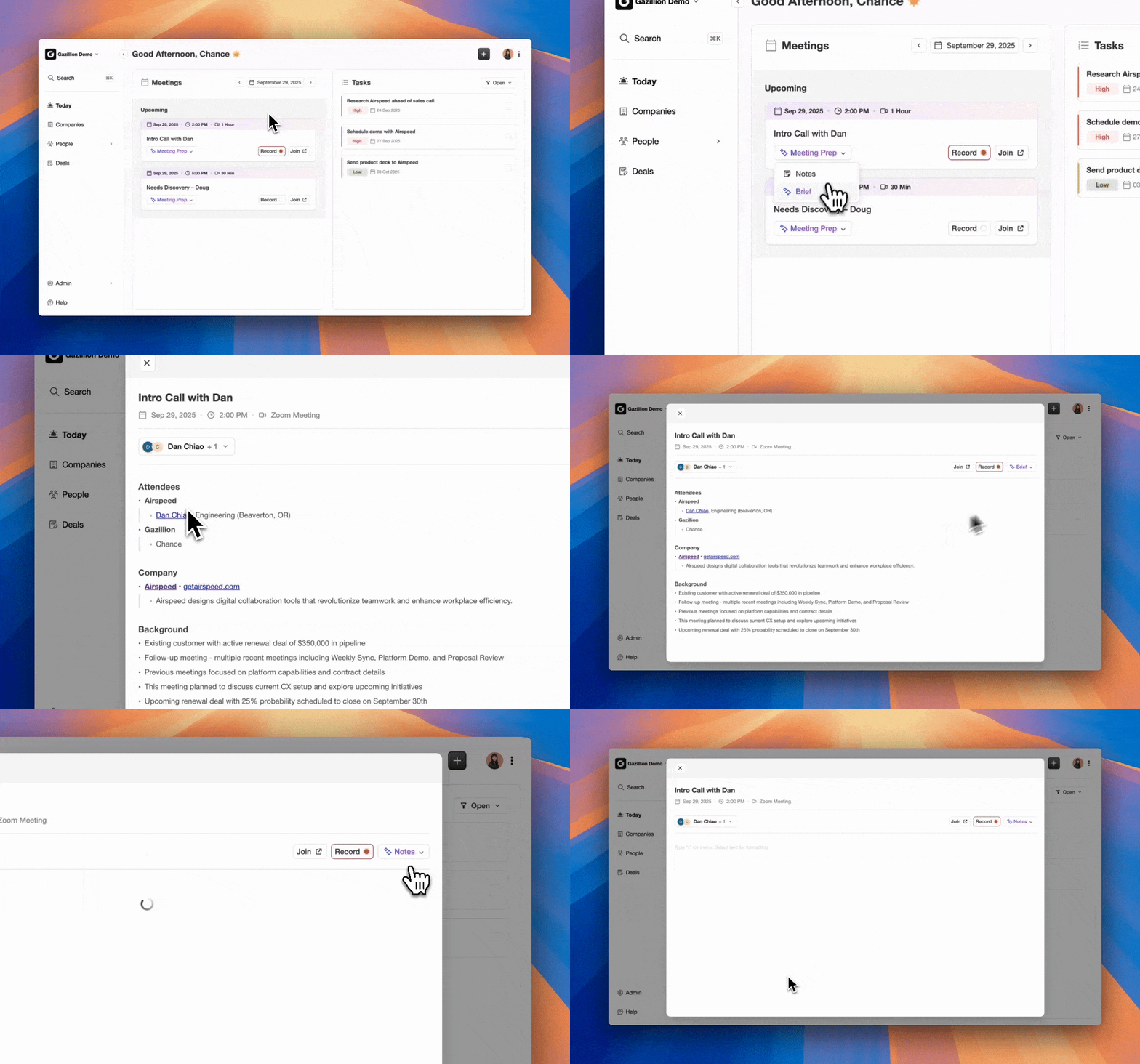
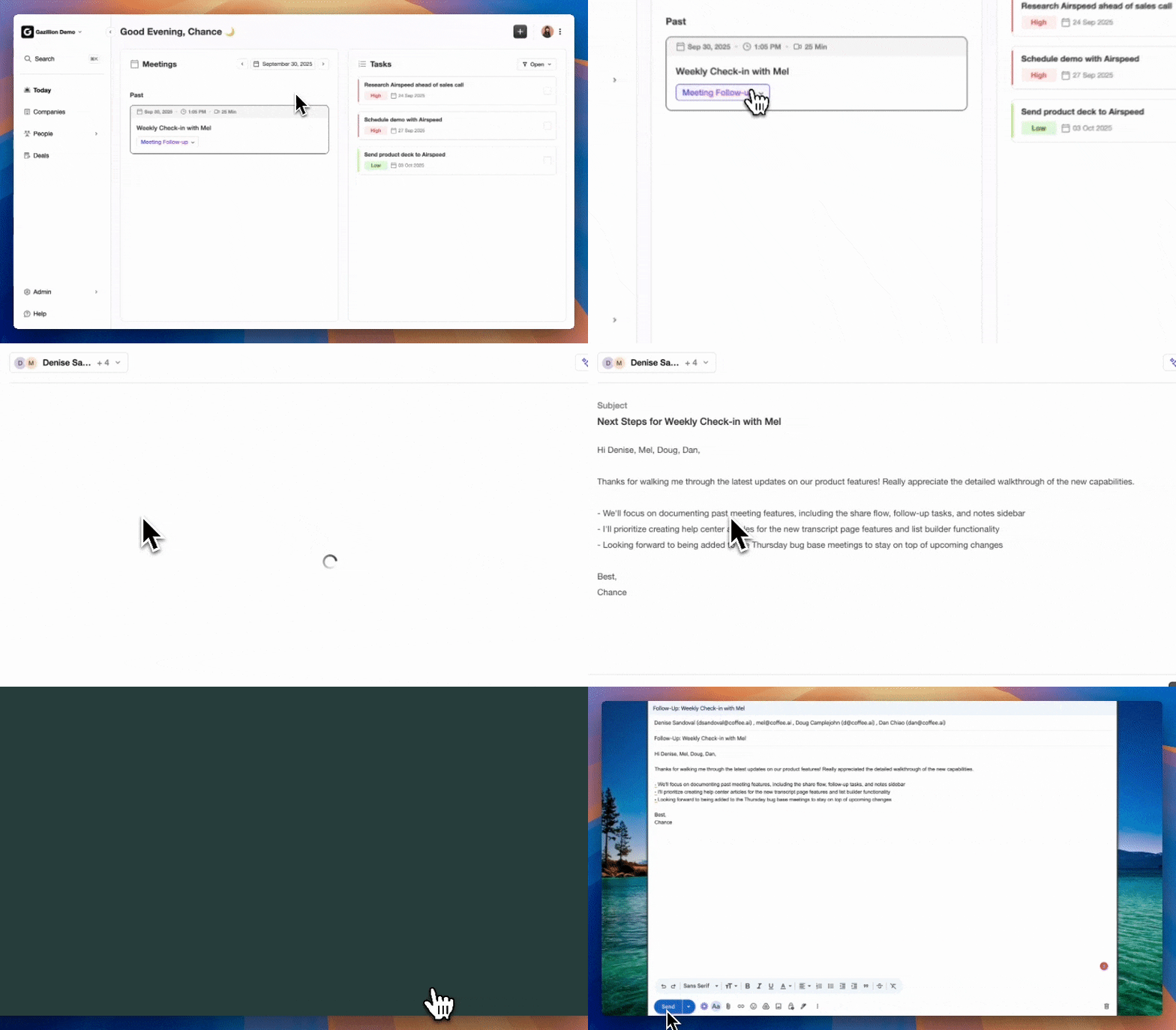
Coffee’s Agent creates and enriches contacts from email signatures and calendar invites, then logs activities such as calls and meetings. It generates AI-powered summaries and follow-ups and triggers HubSpot workflows from unstructured data, including email content and call transcripts. The Agent also handles data validation, deduplication, and enrichment in real time.
| Method | Human Oversight | Data Enrichment | Weekly Savings |
|---|---|---|---|
| Native HubSpot | High | Basic | 2-5 hours |
| Zapier Integration | Medium | Manual mapping | 5-8 hours |
| Coffee Agent | None | AI Automatic | 8-12 hours |
Companies achieve 505% ROI over three years and generate 3x more leads with automated workflows. Coffee amplifies these gains by improving data input quality and removing the “garbage in, garbage out” problem that limits traditional automation.
Get started with Coffee to experience truly autonomous HubSpot workflow automation.
Fixing Common HubSpot Form Workflow Issues
Most workflow issues start with form submissions that never enroll correctly. One frequent cause occurs when form submissions are flagged as spam by HubSpot’s anti-spam filters. Resolve this by whitelisting trusted IP addresses and adjusting form settings to reduce false positives.
Duplicate contacts also disrupt enrollment. Enable “Update existing contact” in workflow settings and use email as the unique identifier. With 38% of RevOps leaders citing poor data accuracy as a top barrier, Coffee’s Agent helps by validating data and deduplicating records automatically.
Measuring Wins from HubSpot Workflow Automation
Track a small set of metrics to prove the impact of your workflows. Focus on 30% faster response times, fewer manual data entry hours, and higher lead qualification rates. AI-powered lead screening workflows reduce initial screening time by 32%, which frees teams to focus on high-intent prospects.
Coffee adds pipeline intelligence and performance insights so you can tie these improvements directly to revenue and ROI.
FAQ: Automating HubSpot Forms with Coffee
Best way to automate follow-up emails after HubSpot form submission
Build a contact-based workflow triggered by form submission, then add a 5-10 minute delay for quick but natural responses. Use personalized email templates with merge tags so each message reflects the contact’s details. For advanced automation, Coffee’s Agent can generate contextual follow-ups based on industry, company size, and form responses so messages feel tailored rather than generic.
How Coffee supports multi-step HubSpot form automation
Coffee’s Agent works alongside HubSpot by capturing and enriching contacts and activities from emails and calendars, then syncing them into contact records. The Agent unifies these touchpoints and keeps profiles current, which supports accurate workflow triggers based on real-time updates.
Security of Coffee’s HubSpot integration
Coffee maintains SOC 2 Type 2 compliance and GDPR adherence with enterprise-grade security controls. Data is encrypted in transit and at rest, never used to train public AI models, and processed within secure cloud infrastructure. The integration uses OAuth authentication with HubSpot so your CRM data stays protected while automation runs in the background.
Triggering HubSpot workflows from external form submissions
Use Zapier to connect external forms such as Forminator, Typeform, or Gravity Forms to HubSpot workflows. Create a Zap that captures form data and then creates or updates HubSpot contacts. This process triggers any workflows that enroll on contact creation or property updates. Coffee’s Agent connects through Zapier and through Google Workspace or Microsoft 365 to capture additional data from emails and calendars.
What to do when HubSpot workflow automation fails
Review HubSpot’s enrollment history and error logs in the workflow performance tab whenever automation fails. Common fixes include adjusting enrollment criteria, confirming contact permissions, and checking that required properties are populated. Coffee’s Agent adds error handling and automatic retry logic, plus real-time notifications when workflows need attention, which reduces failures compared with manual processes.
Conclusion: Turn HubSpot into an Autonomous Revenue Engine
Automating HubSpot form submissions and workflows removes the manual data entry burden that consumes 71% of sales reps’ time. Native HubSpot tools and Zapier integrations create a strong base, while Coffee’s AI Agent pushes your CRM into autonomous territory with intelligent enrichment and hands-free workflow orchestration.
Get started with Coffee today and turn your HubSpot instance into a truly intelligent revenue engine.